How to setup your email account on Mozilla Thunderbird?

  1. Download and install the application Mozilla Thunderbird
    https://www.mozilla.org/en-US/thunderbird/
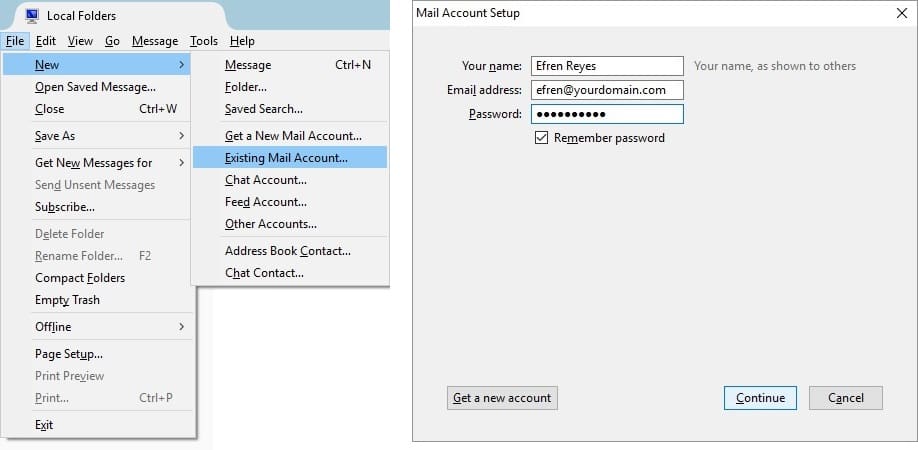
  2. Open Thunderbird and go to File >> New >> Existing Mail Account
    https://s26.postimg.cc/vslsodr49/01_1.jpg   
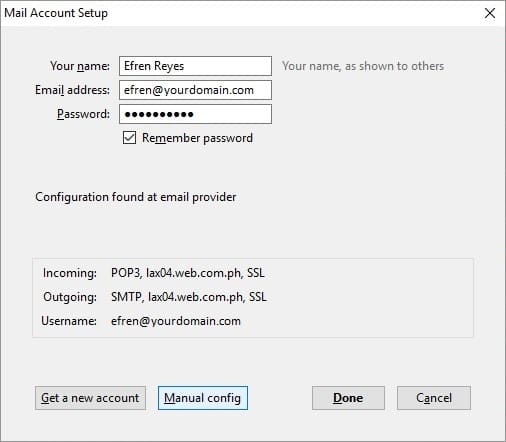
    Click 'Continue' button

    https://s26.postimg.cc/5ryavihzd/image.jpg

    Click 'Manual config'
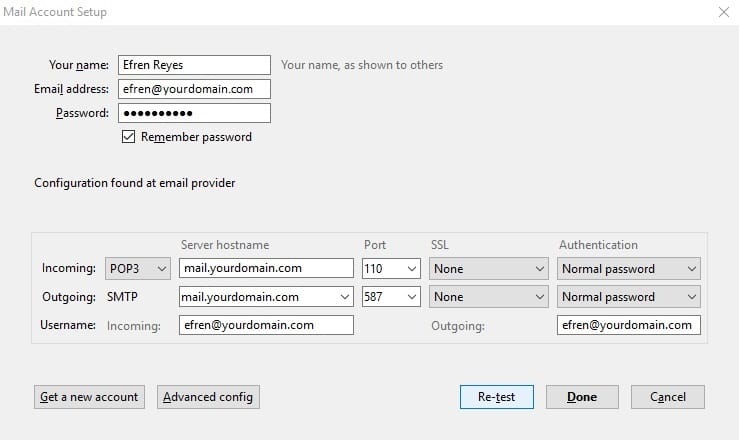
  3. Update the fields with the correct values: Server hostname, Port number, SSL, Authentication
    https://s26.postimg.cc/wearkhm6h/4_1.jpg

    For IMAP connection:
    Incoming: IMAP Port: 993
    SSL: yes
    Authentication: Normal Password


    Click 'Done' button
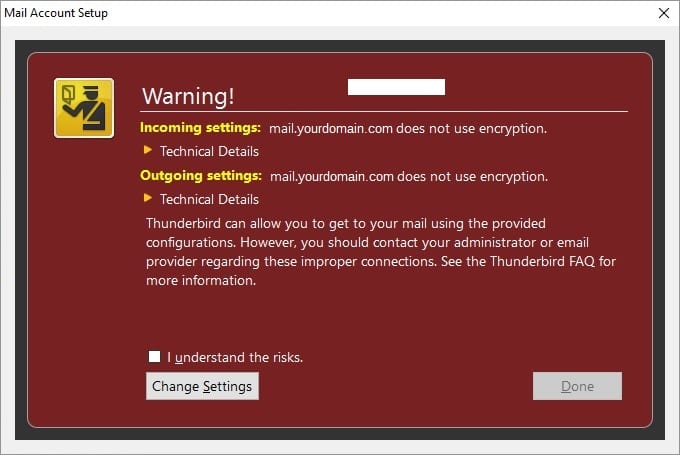
  4. No need to worry about this one, just check the "I understand the risk." and Click "Done"
    https://s26.postimg.cc/unrqj04nd/5_1.jpg
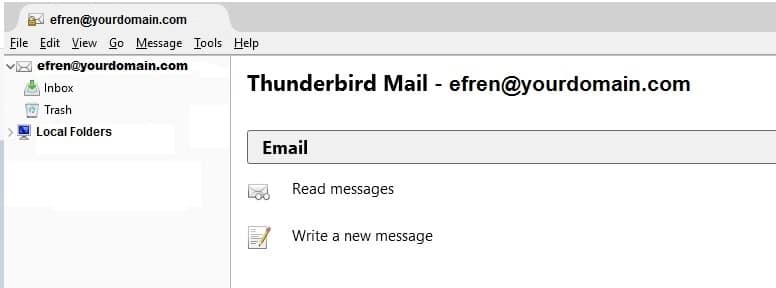
  5. Your email account is now setup!

    https://s26.postimg.cc/nyl72zjbd/6_1.jpg

    You may now use Thunderbird to send & receive emails.
  • mozilla thunderbird
  • 0 Users Found This Useful
Was this answer helpful?

Related Articles

How to fix error "0x800CCC78" in Microsoft Outlook?

Here are the procedures to fix error 0x800CCC78 in Microsoft Outlook: In your Microsoft...

How to setup your email account on your Personal Gmail Account (PC browser)?

Login to your Gmail email account, click the gear icon on the upper right and click Settings....

What are Email Accounts?

It is the email address associated with your web hosting account. You are allowed to create 5...

What is Web Mail Access?

Web Mail Access is the ability to check email using your web browser.  

Why I cannot send emails using my SMTP Server?

The reason why you cannot send emails using your own SMTP Server is because your Internet Service...